
How to use ChatGPT for your business: a step-by-step guide for UK small businesses
Short answer: to use ChatGPT well in a small business, pick a plan that keeps your business data out of model training, agree a few simple rules on what your team should never paste in, then start with two or three everyday tasks such as drafting emails, summarising documents and writing marketing copy. Give it context, check what it produces, and build up from there.
This is a step-by-step guide for UK small business owners and managers with no technical background. Work through it in order, or jump to the part you need. Each part ends with something you can do straight away.
What's in this guide
- Part 1: Choose your plan
- Part 2: Set it up safely (a 15-minute checklist)
- Part 3: Eight tasks to start with, with prompts to copy
- Part 4: Get better results
- Part 5: Features worth knowing
- Part 6: Bring your team along
- Part 7: Your first week
- End-of-guide checklist
- Frequently asked questions
Before you start: what is ChatGPT?
ChatGPT is an AI assistant made by OpenAI. You type or speak a request in everyday language, and it writes a reply. It can draft text, summarise long documents, answer questions, work through a spreadsheet, and turn rough notes into something tidy.
Think of it as a fast, capable assistant who has read a great deal but knows nothing about your business until you tell it. Most disappointing results come from asking a vague question with no background. This guide shows you how to avoid that.
Part 1: Choose your plan
OpenAI offers several plans. The table below compares them for a small business, using UK prices as of 28 October 2026.
| Plan | Monthly price | Best for | Your data used for training by default? | Admin controls? |
|---|---|---|---|---|
| Plan Free | Monthly price £0 | Best for Trying it out on non-sensitive tasks | Your data used for training by default? Yes, unless you switch it off | Admin controls? No |
| Plan Go | Monthly price £7 | Best for Light personal use (OpenAI says it may include ads) | Your data used for training by default? Yes, unless you switch it off | Admin controls? No |
| Plan Plus | Monthly price £20 | Best for Sole traders and regular individual use | Your data used for training by default? Yes, unless you switch it off | Admin controls? No |
| Plan Pro | Monthly price From £89 | Best for Very heavy individual use | Your data used for training by default? Yes, unless you switch it off | Admin controls? No |
| Plan Business, Standard seat | Monthly price £18 per user (£15 billed annually) | Best for Teams of two or more | Your data used for training by default? No | Admin controls? Yes |
| Plan Business, Premium seat | Monthly price £90 per user (£75 billed annually) | Best for Heavy users within a Business team: about five times the usage of Standard, with no five-hour limit | Your data used for training by default? No | Admin controls? Yes |
Business needs at least two seats, and you can mix Standard and Premium. Free, Go, Plus and Pro are designed for individuals.
Our advice: if two or more people will use ChatGPT for work, choose Business with Standard seats. If you're a sole trader and you keep customer data out of it, Plus with training switched off is a reasonable place to start, and you can move to Business later.
Why isn't the free version right for business data?
Three reasons. On personal plans, sharing your conversations for model training is on by default. There are no admin controls, so you can't see which accounts your team uses or remove access when someone leaves. And there's no business agreement in place covering how your data is handled.
That doesn't make the free version bad. It makes it the wrong place for customer details, contracts or financial records.
What does Business add?
OpenAI states that it does not train on Business workspace data by default. Admins can manage members and seats in one place, control how long data is kept, and switch connected apps on or off. OpenAI will also sign a data processing addendum (a DPA, the contract UK GDPR expects when another company handles personal data for you).
Do this now: decide which plan fits. If you're unsure, start with Business for a team or Plus for yourself.
Part 2: Set it up safely
This takes about 15 minutes. You don't need an IT department. Tick through the list once for the business, then once for each person who uses it.
The 15-minute setup checklist
- Sign up on the plan you chose in Part 1, using a work email address rather than a personal one.
- Turn on multi-factor authentication so a stolen password isn't enough to get in.
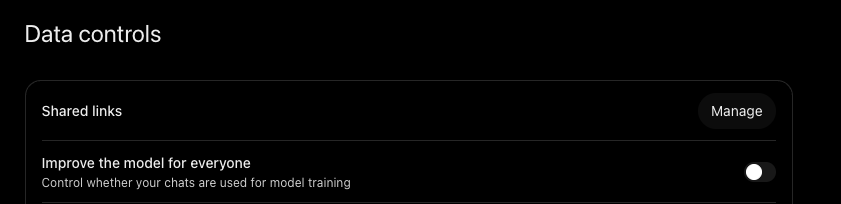
- Switch off model training (personal plans only). Open Settings, select Data controls, and turn off "Improve the model for everyone". On the mobile app, open the sidebar, tap your profile icon, then Data controls. Your chat history stays, and your new conversations won't be used for training.
- Check the voice setting too. OpenAI says voice mode has its own separate control for sharing data for training, so review it if you plan to use voice.
- Know when to use Temporary chat. Temporary chats don't appear in your history, don't update memory and aren't used for training. OpenAI may keep them for up to 30 days for safety. They're useful for one-off tasks.
- Be careful with thumbs up and thumbs down. OpenAI says that if you give feedback on a response, the whole conversation may be used for training, even if you've opted out.
- Review memory. Go to Settings, then Personalization, then Memory to see what ChatGPT remembers and to delete anything you don't want kept. On Business, admins can manage memory settings for the workspace.
- Only connect the apps you need. If you link Google Drive, SharePoint or email (see Part 5), ChatGPT can read what's in them. On Business, admins can switch apps off for the whole workspace.
- Write and share your team rules. Use the block below.
For step 3, this is what you're looking for in Data controls. The "Improve the model for everyone" switch should be off, as it is here.
Your team rules: never, ask first, fine
Agree this before anyone starts, and pin it somewhere your team already looks.
Never paste in: passwords, bank or card details, customer personal data (names with addresses, phone numbers, health or financial details), staff HR records.
Ask first: contracts, pricing, anything under an NDA, unpublished financial figures.
Fine: general questions, drafts with names removed, your own marketing copy, publicly available information.
A useful habit is to replace real names with placeholders ("Customer A", "Supplier B") before pasting text in. You get the same help without sharing the detail.
Do this now: for a quick view of where your business stands on AI risk, try our free AI Security Healthcheck. It takes a few minutes and needs no technical knowledge.
Part 3: Eight tasks to start with
These are everyday jobs where ChatGPT tends to save time. Each one has the same shape: what it's good for, a prompt you can copy, and what to check before you use the result. Swap the bits in square brackets for your own details.
Task 1: Drafting emails and replies
Good for: awkward replies, payment chasers, follow-ups and anything you've been putting off.
I run a [type of business] in [town]. Draft a polite but firm email to a customer whose invoice is 30 days overdue. Keep it under 120 words, friendly in tone, and include a clear request to pay by [date]. Use British English.Check before you use it: amounts, dates and names are right, and the tone sounds like you.
Task 2: Writing quotes and proposals
Good for: turning rough notes into a clear, professional structure.
Turn these notes into a clear, professional quote for a customer. Include a short summary of the work, a list of what's included, what's not included, and the price. Don't add anything that isn't in my notes. Notes: [paste notes, with the customer's name removed].Check before you use it: every price, quantity and exclusion matches your notes. It shouldn't have added anything you didn't give it.
Task 3: Summarising long documents
Good for: contracts, supplier terms, reports and guidance you don't have time to read in full. Upload a PDF or paste the text in.
Summarise this document in five bullet points for a busy business owner. Then list any deadlines, costs or obligations it places on us. Flag anything you're unsure about.Check before you use it: look up anything important in the original document. A summary is a guide to where to look, not a replacement for reading the key clauses.
Task 4: Marketing copy and social posts
Good for: product descriptions, social posts, newsletters and website text. It works best when you show it how you already write.
Here are three of our recent social posts: [paste]. Using the same tone, write five short posts announcing [new product or service]. Each under 50 words. No hashtags, no exclamation marks.Check before you use it: claims about your product are accurate and you can back them up. Remove anything that sounds generic or not like you.
Task 5: Customer service replies
Good for: building a set of standard answers to common questions that your team can adapt quickly.
We get this question a lot: [question]. Write a short, warm reply our team can reuse. Our policy is: [policy]. Keep it under 80 words and don't promise anything beyond the policy.Check before you use it: the reply matches your actual policy, and it doesn't promise refunds, timescales or anything else you don't offer.
Task 6: Working with spreadsheets
Good for: spotting trends, totting up figures and producing simple charts from an uploaded spreadsheet. Remove personal data first.
I've uploaded our monthly sales figures. Which three products grew most over the last six months, and which declined? Show the figures you used so I can check them.Check before you use it: spot-check two or three of its figures against the spreadsheet. If a number looks surprising, ask it to show its working.
Task 7: Turning meeting notes into actions
Good for: tidying rough notes into decisions and a clear list of who does what.
Here are my rough notes from today's team meeting: [paste]. Turn them into a short summary, a list of decisions, and a table of actions with an owner and a due date for each. If an owner or date is missing, say so rather than guessing.Check before you use it: every action and owner was actually agreed in the meeting, and nothing important was dropped.
Task 8: First drafts of policies and procedures
Good for: getting a first draft down quickly. A starting point, never the final word, especially for anything with legal weight.
Draft a one-page policy for how our team of [number] uses AI tools at work. Cover which tools are approved, what data must never be entered, and who to ask if unsure. Plain English, no legal jargon. I'll have it reviewed before we use it.Check before you use it: read it against how your business really works. For anything legal, HR or financial, have a qualified person review it.
Do this now: pick one of these tasks and try it today with a real piece of your own work.
Part 4: Get better results
The difference between a vague answer and a useful one is nearly always the request. Four habits make the biggest difference.
Habit 1: Give it context
Tell it who you are, who the output is for, and what good looks like.
- Vague: "Write a product description."
- Useful: "Write a 60-word product description for our handmade oak chopping board, for our website, aimed at people buying gifts."
Habit 2: Show it examples
Paste in an email or post you're happy with and ask it to match the style. This works better than trying to describe your tone.
Habit 3: Iterate
Treat the first reply as a draft. Ask it to make the text shorter, warmer, more formal or clearer. You can say "that's too salesy, try again" and it will.
Habit 4: Check the output
ChatGPT can get facts wrong and still sound confident. Check names, figures, prices, dates and anything legal or financial before it leaves your business. If it quotes a source, open the source and confirm it says what ChatGPT claims.
A simple prompt template
When you're not sure how to start, fill in these four lines:
Who I am: [your role and type of business]
What I need: [the task, in one sentence]
Who it's for: [the reader or customer]
What good looks like: [length, tone, format, anything to avoid]
Do this now: take a prompt that gave you a weak answer and rewrite it with the template above.
Part 5: Features worth knowing
ChatGPT does more than answer one-off questions. These features are the most useful for small businesses. OpenAI changes features and plan limits often, so check the current details in the app.
Projects
What it is: a way to keep related chats, files and instructions together, so ChatGPT has the background each time you come back. OpenAI offers Projects on Free as well as paid plans, with more files per project on paid plans.
SME example: create a project for each big client or job. Add the brief, the quote and the key emails, plus instructions such as "always write in British English and keep replies under 150 words". Every chat in that project starts with the full picture.
Saving a task you repeat
What it is: a way to set up the same task the same way every time, so you're not typing out the same instructions again.
SME example: the simplest option for most small businesses is a project with clear instructions. For example, a "Quotes" project holding your price list and standard terms, with instructions on layout and tone. Each new quote starts from the same setup.
Connected apps
What it is: connections between ChatGPT and services you already use, such as Google Drive, SharePoint, Outlook email and calendar, Microsoft Teams, Slack and Notion. Depending on the app, ChatGPT can find a file, summarise a document or look up a message. Which apps you can use depends on your plan, your region and your workspace settings.
SME example: connect your shared drive and ask, "Find our latest price list and summarise what changed from last year."
Remember: your team rules from Part 2 still apply. A connected app can give ChatGPT access to everything in that account, so only connect what you need. OpenAI says it does not use information accessed through apps to train its models by default on Business. On Business, admins can switch individual apps off for the workspace.
File and spreadsheet analysis
What it is: upload PDFs, Word documents or spreadsheets and ask questions about them. ChatGPT can run calculations and produce charts. Free has tighter limits.
SME example: upload last quarter's sales export (with customer names removed) and ask which products sell best in which months.
Deep research
What it is: for bigger questions, ChatGPT can spend longer reading many sources and produce a structured report with citations or source links, so you can check its work. Usage limits vary by plan.
SME example: "Research the main UK regulations a small food business needs to follow when starting to sell online, and list the official sources." Then check the key points against the official sources it gives.
Voice
What it is: talk to ChatGPT instead of typing. It's available on all plans, with more usage on paid plans.
SME example: talk through ideas for a new service on the drive home, then ask ChatGPT to turn the conversation into a written plan.
Memory
What it is: when memory is on, ChatGPT can remember details and preferences from your chats, so you repeat yourself less. You can view, delete or switch it off in Settings, then Personalization, then Memory.
SME example: tell it once that you run a joinery business in Leeds and prefer British English. Review memory from time to time to check it hasn't kept anything you'd rather it didn't.
Scheduled tasks
What it is: ChatGPT can run one-off or recurring tasks at a set time. The number of active tasks you can have depends on your plan.
SME example: set a weekly task every Monday morning: "Give me five ideas for social posts this week, based on the season and upcoming UK bank holidays."
Do this now: set up one project for your most frequent task, with instructions you'd otherwise type every time.
Part 6: Bring your team along
Start small and make it easy to share what works.
- Pick one or two people to go first. Ideally someone keen and someone sceptical. You'll learn more from both.
- Choose two or three tasks, not ten. Emails and document summaries are a good start for most businesses.
- Share the team rules from Part 2 on day one, somewhere people already look.
- Keep a shared prompt list. When someone finds a prompt that works, add it. Over time this becomes one of your most useful assets.
- Set up shared projects for common work, so everyone starts from the same instructions and files.
- Review after a month. What saved time? What didn't work? Both are useful. Not every task suits AI, and finding that out is progress too.
Be open with your team about why you're doing this. Some people will worry about what it means for their role. In most small businesses the aim is to take repetitive admin off people's plates so they have more time for customers and the work that needs a human. Say that clearly, and ask for their ideas on where it could help.
What to avoid
- Using personal free accounts for business data.
- Pasting in customer personal data, passwords or financial details.
- Sending AI-written content without reading it.
- Relying on ChatGPT for legal, tax or financial advice without checking with a qualified professional.
- Trying to automate everything at once. Pick one task, get it working, then add the next.
Do this now: choose who goes first, and tell them which two tasks to try.
Part 7: Your first week
A simple plan to get from sign-up to everyday use in five working days. Each day takes about 20 to 30 minutes.
Day 1: Set up. Choose your plan and work through the 15-minute checklist in Part 2. Write your never, ask first, fine rules and share them.
Day 2: Emails. Use Task 1 on three real emails you need to send today. Edit each draft before sending and note what you changed.
Day 3: Documents. Use Task 3 on a document you've been meaning to read, such as a supplier contract or a guidance note. Check the key points against the original.
Day 4: Your own project. Create a project for your most frequent task (Part 5). Add the files and instructions it needs, then use it for real work.
Day 5: Review. Look back at the week. Which task saved the most time? Which prompts worked? Save the best ones to a shared list, and decide what to try next week.
End-of-guide checklist
Tick these off and you're ready to use ChatGPT in your business with confidence.
- I've chosen a plan that suits my business (Business for a team, Plus for a sole trader).
- Model training is switched off on any personal plan we use.
- Multi-factor authentication is on for every account.
- Our never, ask first, fine rules are written down and shared.
- I've tried at least two of the eight tasks with real work.
- I've checked every output before it went to a customer.
- I've set up one project for a task we repeat.
- Connected apps are limited to the ones we need.
- We have a shared list of prompts that work.
- I've booked a date to review how it's going.
Where to go next
You don't have to work this out alone. Try our free tools, including the AI Security Healthcheck, and join AI for Growth for free to learn alongside other UK small business owners working through the same questions.
Common questions
Frequently asked questions
AI for Growth
National initiative helping UK businesses adopt AI